
Picture this: your codebase has accumulated hundreds of A/B test flags over the years. Some are permanently on. Some were abandoned. Some nobody remembers creating. The old way meant writing a script to check them one by one — a multi-day job.
Here’s the new way. You write an orchestration script, dispatch hundreds of AI agents in parallel, and ten minutes later, a verified cleanup list is sitting on your desk.
This is Dynamic Workflows, launched alongside Claude Opus 4.8 in Claude Code. The core idea in one sentence: instead of doing the work itself, Claude writes an orchestration script, spins up dozens or hundreds of AI agents to execute in parallel with mutual review, then hands you a verified result.
The Difference From Old Sub-Agents: Commander vs. Scheduler
Claude Code has been able to spawn multiple sub-agents for a while. The difference between Dynamic Workflows and the old approach isn’t about parallelism — it’s about who does the orchestration, and where the intermediate results live.
The old model was real-time command. Claude acted as commander: who to dispatch, what they returned, what to do next — every decision made on the fly. The problem was intermediate results. Every sub-agent’s output got dumped into the conversation context.
Here’s a concrete example. You ask Claude to audit every API endpoint in a project. In the old model, it spins up a few agents, each checking a portion, and all their output flows back into context. Fine with a handful of agents. Try scaling to 50 files, and context fills up instantly. The old ceiling was single-digit agents per turn.
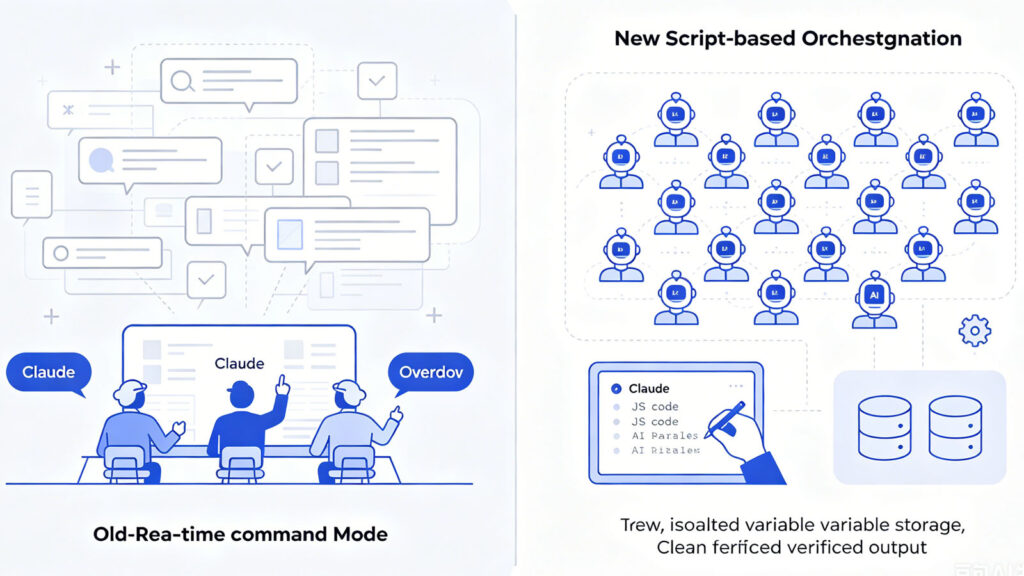
Dynamic Workflows takes a fundamentally different approach: script-based orchestration.
Claude no longer directs in real time. It first writes a JavaScript script that encodes the entire orchestration flow — loops, conditionals, every agent’s intermediate output — all stored in script variables. These variables never enter the conversation context.
The context holds exactly one thing at the end: the verified final answer.
The result: orchestration capacity jumps from single digits to hundreds. Not because the AI got smarter. Because the architecture changed.
One-sentence summary: the old model was Claude as a foreman, listening to every worker’s report. The new model is Claude writing a construction plan — workers execute the plan, and you get a single completion report.
Attack and Defense Inside a Single Pipeline
Orchestration is step one. What makes Dynamic Workflows genuinely interesting is the review architecture.
A top-level Claude splits the task into dozens or hundreds of subtasks. Under each subtask runs a fixed pipeline: one AI produces the draft, two AIs review independently, one AI revises based on the review feedback.
The review stance is what matters. This isn’t a gentle “check if anything looks off.” The reviewing AIs are explicitly adversarial — their default assumption is “the working AI might be wrong,” and their job is to find evidence that disproves the conclusion.
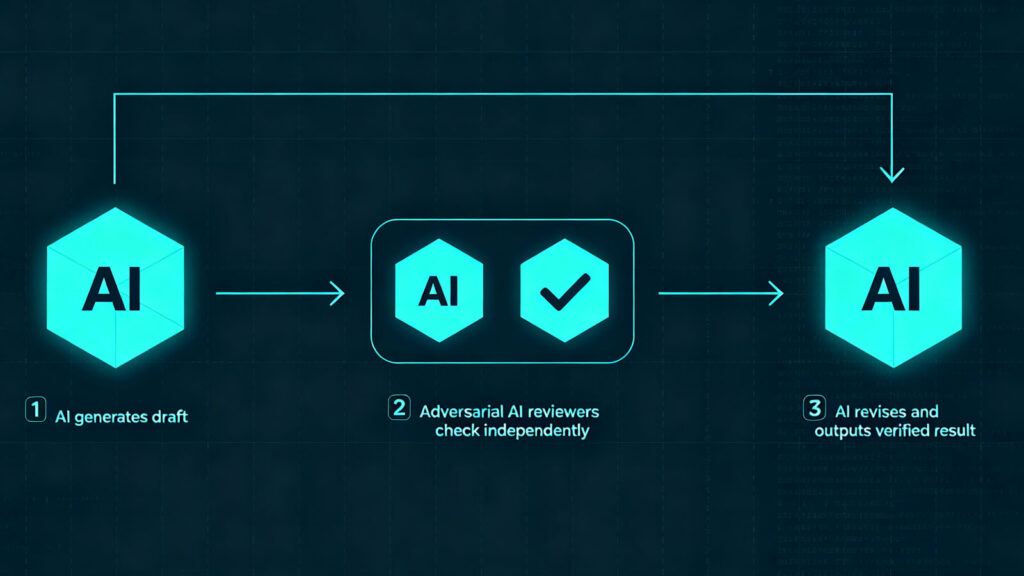
One side solves. One side dismantles. After enough back-and-forth, conclusions that survive the gauntlet get to stay. Everything else is filtered out at the pipeline level and never reaches the top.
Hundreds of these adversarial pipelines run concurrently. The top-level Claude receives a batch of verified results and delivers them in one shot.
This mechanism solves a fundamental problem: single-AI output quality is unpredictable. Adding a review layer transforms “I trust this AI” into “two AIs independently verified this and reached the same conclusion.” It’s trading redundant compute for quality assurance.
Three Ways to Trigger
There are currently three ways to launch a Dynamic Workflow.
First, manual trigger. Include the word workflow in your prompt. For example: “Use a workflow to scan all endpoints in src/routes and find any missing auth checks.” Claude Code highlights the keyword and auto-generates a workflow script for the task. Hit alt+w to cancel if you triggered it by accident.
Second, automatic judgment. Enable ultracode mode with /effort ultracode. Once on, Claude evaluates each task and decides whether it warrants a workflow — no need to type “workflow” every time. A single request can even chain multiple workflows: one reading code, one modifying code, one verifying the changes.
Note: ultracode is not a new reasoning tier. Claude Opus 4.8 still uses the five standard tiers: low, medium, high, xhigh, max. Ultracode does exactly two things: locks reasoning to xhigh, and grants Claude a standing permission to decide on workflows autonomously.
Third, built-in command. Anthropic ships a ready-made /deep-research workflow. Give it a question. It searches from multiple angles, cross-validates sources, votes on each conclusion, and outputs a report with citations. Unverified information gets filtered out before you ever see it. This is the fastest way to taste-test workflows.
When to Use Them — and When Not To
Dynamic Workflows are not a universal switch. They have a clear use boundary.
They excel at horizontally parallelizable tasks. The defining trait: the work can be split into independent chunks, hundreds of AIs operating in isolation, nobody waiting on anyone else’s output.
Classic scenarios: scanning an entire codebase for security vulnerabilities, migrating API calls across hundreds of files from one version to another, stress-testing a technical proposal from performance, security, and maintainability angles simultaneously.
The Bun rewrite from Zig to Rust — hundreds of files changed, zero dependencies between them — was an ideal workflow candidate.
They fail at sequential tasks. The defining trait: each step consumes the previous step’s output. Work must happen in order. Throwing a hundred agents at a serial task is like hiring a hundred workers and having ninety-nine stand around waiting.
The litmus test is straightforward: can you slice this task into independent chunks? If it decomposes horizontally, use a workflow. If it only moves forward, stick with normal mode.
There’s a subtler signal too: if your instinct is to write a for-loop for the job, it probably fits workflows. If your instinct is to build a pipeline with pipes, it probably doesn’t.
Token Bills and Known Rough Edges
The biggest cost of Dynamic Workflows is tokens — and we’re not talking small multipliers. We’re talking orders of magnitude.
A normal conversation turn might burn ten thousand tokens. The same task with workflows enabled can consume tens to over a hundred thousand. Run a 500-agent code review through Claude Opus 4.8, and your bill lands an order of magnitude higher than a typical session. All of it counts against your plan quota and limits.
Anthropic’s official guidance: start with a small task. This isn’t politeness. It’s warning you not to incinerate your token budget by accident.
And it’s still in research preview. Stability isn’t production-grade yet. One user reported planning 47 agents but only 25 actually launched, with several errors across a five-hour session requiring human babysitting. Another saw a planned 10 agents balloon to 82, burning through tokens before the job finished.
The current verdict on this machine: plenty of horsepower, but it still needs supervision. It behaves more like a junior engineer who requires oversight than a set-it-and-forget-it operator.
Versions and Kill Switches
Claude Max and Team plans get it by default. API users too. Enterprise plans have it off by default — an admin needs to enable it in Claude Code settings. Version requirement: v2.1.154 or later. Older versions don’t have this feature.
Worried about accidentally torching your tokens? Three ways to kill it. Run /config and add "disableWorkflows": true to ~/.claude/settings.json. Or set the environment variable CLAUDE_CODE_DISABLE_WORKFLOWS=1. Once disabled, the workflow keyword stops triggering, /deep-research becomes unavailable, and ultracode vanishes from the menu.
Ready to try it? Open Claude Code, type a prompt with “workflow,” and let those hundreds of AIs go to work. But start small — a single directory, a handful of files. Get a feel for the token burn rate first. Then scale up.