
Finishing your first project is just the start. What really separates efficient users from frustrated ones are five core workflows. This chapter covers each of them.
Plan Mode: Think First, Code Later
Boris Cherny, the creator of Claude Code, has said that a good plan really matters. He starts most of his sessions in Plan Mode.
Plan Mode makes Claude plan without executing. It will tell you what it intends to do, but it will not touch your code, install packages, or run commands. You discuss the approach, refine it together, and only then let it act.
Press Shift+Tab twice to enter Plan Mode. Claude’s behavior changes: it reads files to understand your code but modifies nothing, and it produces detailed implementation plans you can iterate on.
The golden workflow: Start in Plan Mode to discuss the approach. Once the plan is solid, press Ctrl+G to open your editor and write a detailed execution brief incorporating all the decisions and constraints from the discussion. Save, and the content lands back in Claude Code’s input box. Then switch to normal mode, enable Auto-accept, and let Claude execute the plan in one shot.
When to use Plan Mode:
| Use Plan Mode | Skip Plan, Go Direct |
|---|---|
| You are unsure about the implementation | Fixing a typo or one-liner |
| Changes will touch multiple files | Adding a console.log |
| You are unfamiliar with this part of the code | You know exactly what to change |
| Refactoring or architecture-level changes | Running a test or installing a package |
| First time working in a new project | Repetitive daily tasks |
A practical rule of thumb: if the task is complex enough that you would need to explain it to a colleague, it is worth Plan Mode. If you can describe it in one sentence, just do it.
Auto Mode: Safer Autopilot
After a few dozen sessions with Claude Code, you know the feeling. Every file edit requires confirmation. Every command needs approval. By the 50th “y”, you are not reading what you are approving anymore.
Anthropic’s internal data confirms this: 93% of permission requests are approved by users. Approval fatigue makes the safety mechanism meaningless.
Auto Mode solves this with an AI classifier that judges permissions for you. Safe operations pass automatically; risky ones still get blocked.
How it works: Auto Mode has two layers of defense. The input layer scans all content Claude reads — files, web pages, command output — for prompt injection attempts. The output layer evaluates the risk of every action Claude wants to take. It runs in two phases: a fast single-token yes/no judgment with an 8.5% false positive rate, followed by deeper reasoning on flagged operations to bring the false positive rate down to 0.4%.
What Auto Mode intercepts — real cases from Anthropic’s internal logs:
- Scope escalation: You say “clean up old branches” and Claude tries to delete remote branches too. Blocked.
- Credential hunting: Claude hits an auth error and starts searching environment variables for other tokens. Blocked.
- Bypassing safety: A deploy command fails preflight checks and Claude retries with
--skip-verify. Blocked. - Data exfiltration: Claude tries to create a public GitHub Gist to share code. Blocked.
Enable it with claude --permission-mode auto or cycle through modes with Shift+Tab. Auto Mode is not perfect — Anthropic’s data shows a 17% miss rate for “overly proactive behavior.” For production databases or cloud infrastructure, manual confirmation is still the safer bet.
Auto Mode vs. --dangerously-skip-permissions:
| Auto Mode | –dangerously-skip-permissions | |
|---|---|---|
| Safety | AI classifier evaluates every action | No protection at all |
| Dangerous ops | Blocked, Claude is redirected | Executed without any prompt |
| Prompt Injection defense | Input-layer detector | None |
| Best for | Daily development | Fully isolated sandboxes, CI/CD |
Permission Management: You Set the Rules
Beyond Auto Mode, Claude Code offers finer control. Type /permissions to open the permission manager. You can pre-authorize specific operations so Claude never asks about them:
# Allow all npm scripts
Bash(npm run *)

# Allow editing everything in docs/
Edit(/docs/**)

# Allow running tests
Bash(npx vitest *)
Bash(npx jest *)

# Allow git operations
Bash(git add *)
Bash(git commit *)
Bash(git push)
These rules live in .claude/settings.json and can be committed to Git so the entire team shares the same permission configuration.
Three tiers of permission control:
| Method | Convenience | Safety | Best For |
|---|---|---|---|
| Auto Mode | High | Medium (AI classifier) | Most daily developers |
| /permissions allowlist | Medium | High (precise control per command) | Teams, fine-grained needs |
| Per-action confirm (default) | Low | Highest | High-risk operations, learning phase |
Start with per-action confirmation. After a few projects, once you know what commands Claude typically runs, switch to Auto Mode or configure an allowlist.
Git Operations: Claude Speaks Git Natively
Claude Code does not just run git commands. It understands your repository state — what files changed, which branch you are on, the commit history.
One-command commits and PRs:
Commit the current changes with a meaningful message describing the RSS fetch feature we added.
Claude analyzes your diff, writes a descriptive commit message, and runs git add + git commit. For PRs, it generates the title and description automatically.
Git Worktrees for parallel work: This is Boris’s number one productivity tip. A Git worktree lets you check out multiple branches simultaneously, each in its own directory:
claude --worktree
Claude Code creates a new worktree on an isolated branch. Your current branch is untouched. You can run multiple worktrees, each handling a different task without interference.
Boris runs 5 Claude Code instances locally in separate worktrees, plus 5-10 more sessions on claude.ai/code. That is 15 concurrent tasks. This is what agent-powered work looks like: you do not do everything yourself. You manage a team of agents.
Session Management: Keep Your Context Clean
Claude Code has a context window. The longer the conversation, the more diluted Claude’s attention becomes.
| Action | Command / Shortcut | When to Use |
|---|---|---|
| Clear session | /clear | Switching to a completely different task |
| Compact context | /compact | Session is long, Claude is slowing down |
| Stop current action | Esc | Claude is doing something you do not want |
| Rewind | Esc × 2 or /rewind | Claude broke something — roll back conversation, code, or both |
| Resume last session | claude --continue | Terminal closed accidentally |
| Resume specific session | claude --resume | Return to a previous session |
| Side conversation | /btw | Ask an unrelated question without polluting context |
/clear is more important than it looks. If you just fixed an API bug and now want Claude to build a frontend component, /clear first. Otherwise, leftover context about that API bug will bleed into the new task.
/compact does not delete the conversation — it compresses it into a summary. Use it mid-session when context is getting full but you want to keep the conclusions. /btw opens a side channel: ask a quick question that will not clutter your main task’s context.
Six Pitfalls You Will Probably Hit
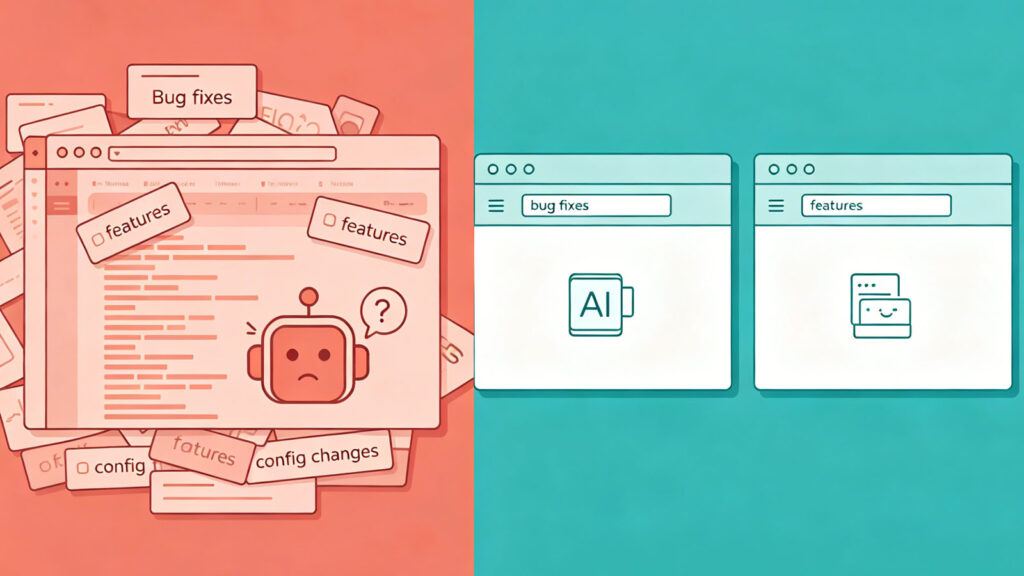
Pitfall 1: One session for everything. Bug fixes, features, refactors, docs — all crammed into one session. Context fills up, and Claude’s understanding of each task gets shallow. One session, one task. /clear or open a new terminal when you switch.
Pitfall 2: Endless corrections. Claude does something wrong; you correct it. It fixes that but breaks something else; you correct again. After two corrections, stop. /clear and start over with a better initial prompt. Patching a derailed conversation is worse than starting fresh.
Pitfall 3: Trusting output that “looks right.” Claude writes a lot of code that seems reasonable. You accept it without actually running it. Days later, edge-case bugs surface. Run every change. “Looks correct” and “is correct” can be far apart.
Pitfall 4: Micromanaging. You review every file Claude writes, comment on every line it changes. Focus on results. Let Claude finish a complete task, then evaluate the output. Intervene only when it is clearly going off course.
Pitfall 5: Vague requirements, then blaming Claude. “Optimize this code.” “Make this page look better.” Claude can only guess. Give specific, verifiable requirements: “Reduce this API response time from 2 seconds to under 500ms. The bottleneck is the database query. Consider adding a cache or optimizing the SQL.”
Pitfall 6: No CLAUDE.md. No CLAUDE.md file in the project root, or one that is never updated. Every new session, you re-explain the project background, code standards, and tech decisions.